Part 1 - Setup TRASAGATE server and root account
In this first part, we will cover installation and setup of TRASAGATE server.
Before Installation
Linux server
We've created 1 core 2 GB ram 20 GB storage Ubuntu server. We will call this server Nepsec TRASAGATE server. Once this server is ready, install and setup Openssh server and Docker in this server.
Domain name
We've setup DNS with
Arecordnepsec.Trasagate.comwhich points to our server. Setup a domain in your control.
Install
We are using docker install for demonstration. For other installation options, refer to Install Guides
SSH to Linux instance (TRASAGATE server) you created in previous step.
# Run Postgresql database
sudo docker run -d -p 5432:5432 --name db -e POSTGRES_PASSWORD=trasauser -e POSTGRES_USER=trasauser -e POSTGRES_DB=trasadb postgres

# Run Redis
sudo docker run -d -p 6379:6379 --name redis redis

# Run Guacd Server
sudo docker run -d --rm --name guacd -p 127.0.0.1:4822:4822 -v /tmp/trasa/accessproxy/guac:/tmp/trasa/accessproxy/guac --user root seknox/guacd:v0.0.1

# Run TRASA server
sudo docker run --link db:db \
--link guacd:guacd \
--link redis:redis \
-p 443:443 \
-p 80:80 \
-p 8022:8022 \
-e TRASA.LISTENADDR=TRASA.NEPSEC.IO \ # <- Replace it with your preferred TRASAGATE domain name.
-v /tmp/trasa/accessproxy/guac:/tmp/trasa/accessproxy/guac \
Setup Root Account
TRASAGATE server should be ready from previous step. Enter TRASA_HOST in your browser.
In our case, we setup domain nepsec.Trasagate.com so we enter this address in browser.

When TRASAGATE is installed, default system account root is created for you with default password changeme.
Enter username and password (root account) in login box.
TRASAGATE requires two factor authentication by default and TRASAGATE mobile app is default supported authenticator. Since this is your first login, you need to enrol device first:
Get TRASAGATE authenticator from Play Store or App Store.
Enrol Mobile Device
Since this is your first time logging into TRASAGATE, you have not yet added your 2FA device yet. QR code will appear on screen.
Enrol Steps:
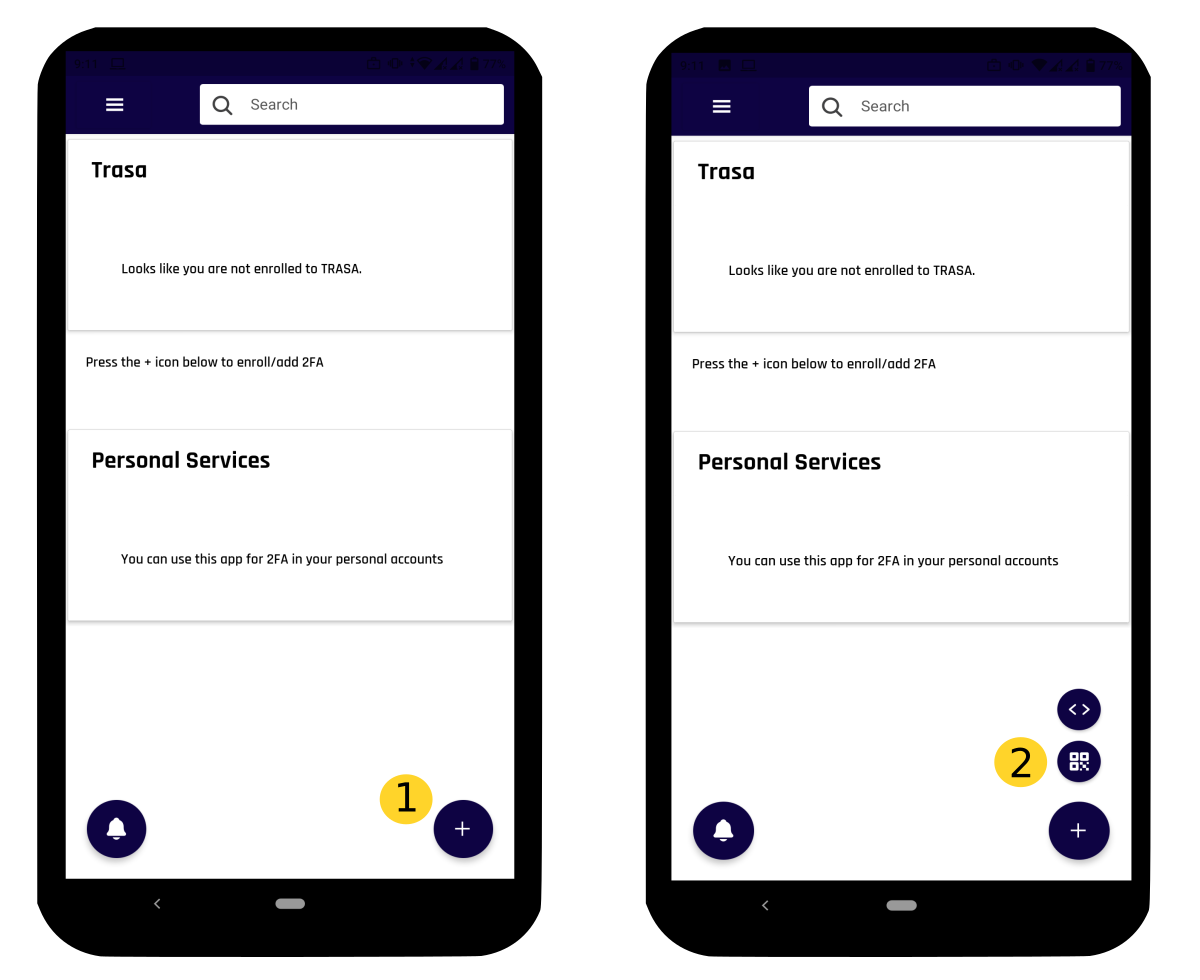
- Press the
+button (buttom right). - Press QR image icon button. This will open in-app camera.
- Scan the QR image from TRASAGATE dashbaord
- If everything goes well, you will see the following icon on your app
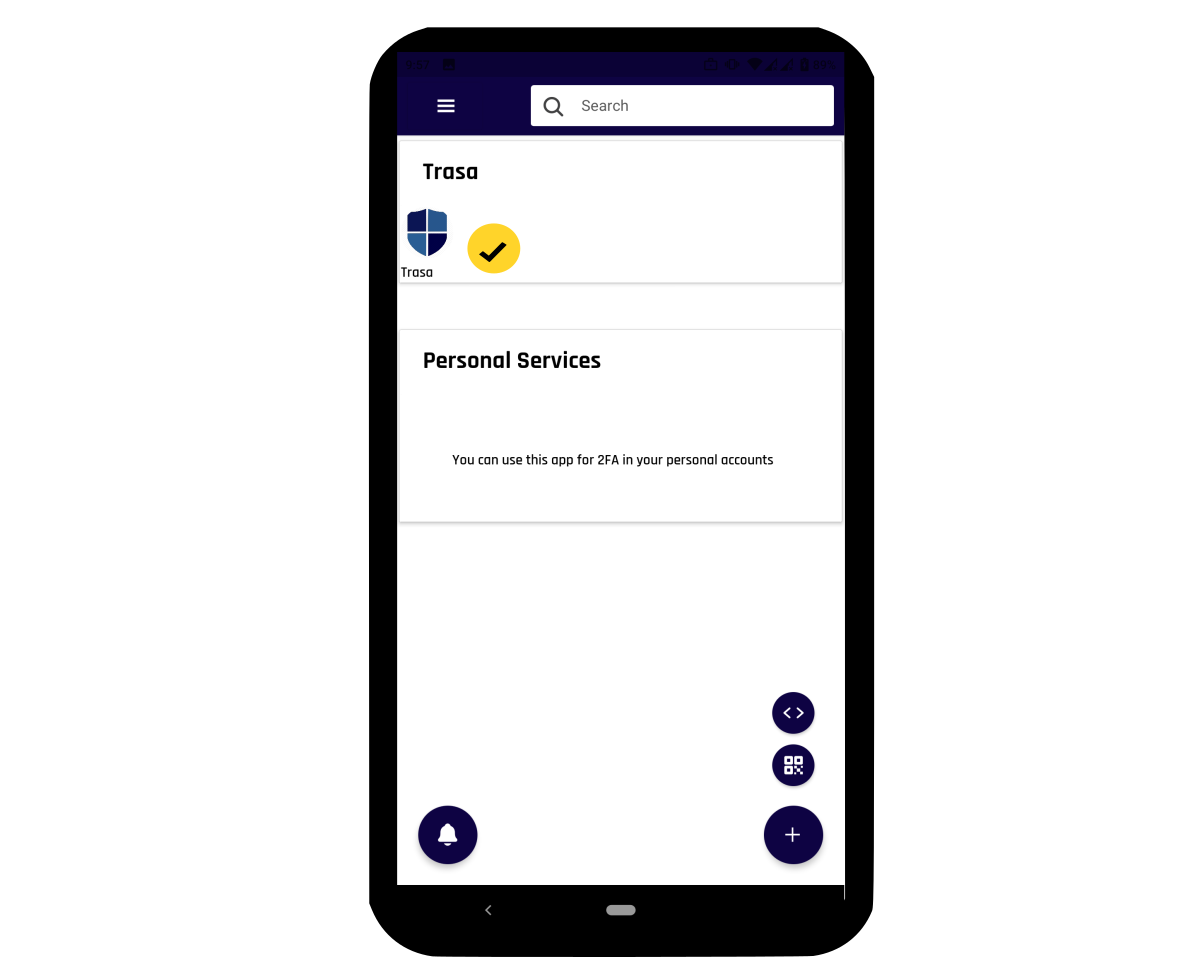
- Press the icon to get TOTP codes
Login with root account
Press login button in dashboard page (where QR code is shown), you will be redirected to Login page again.
Enter root account credentials
Once the credentials are validated, you will see second-step verification page
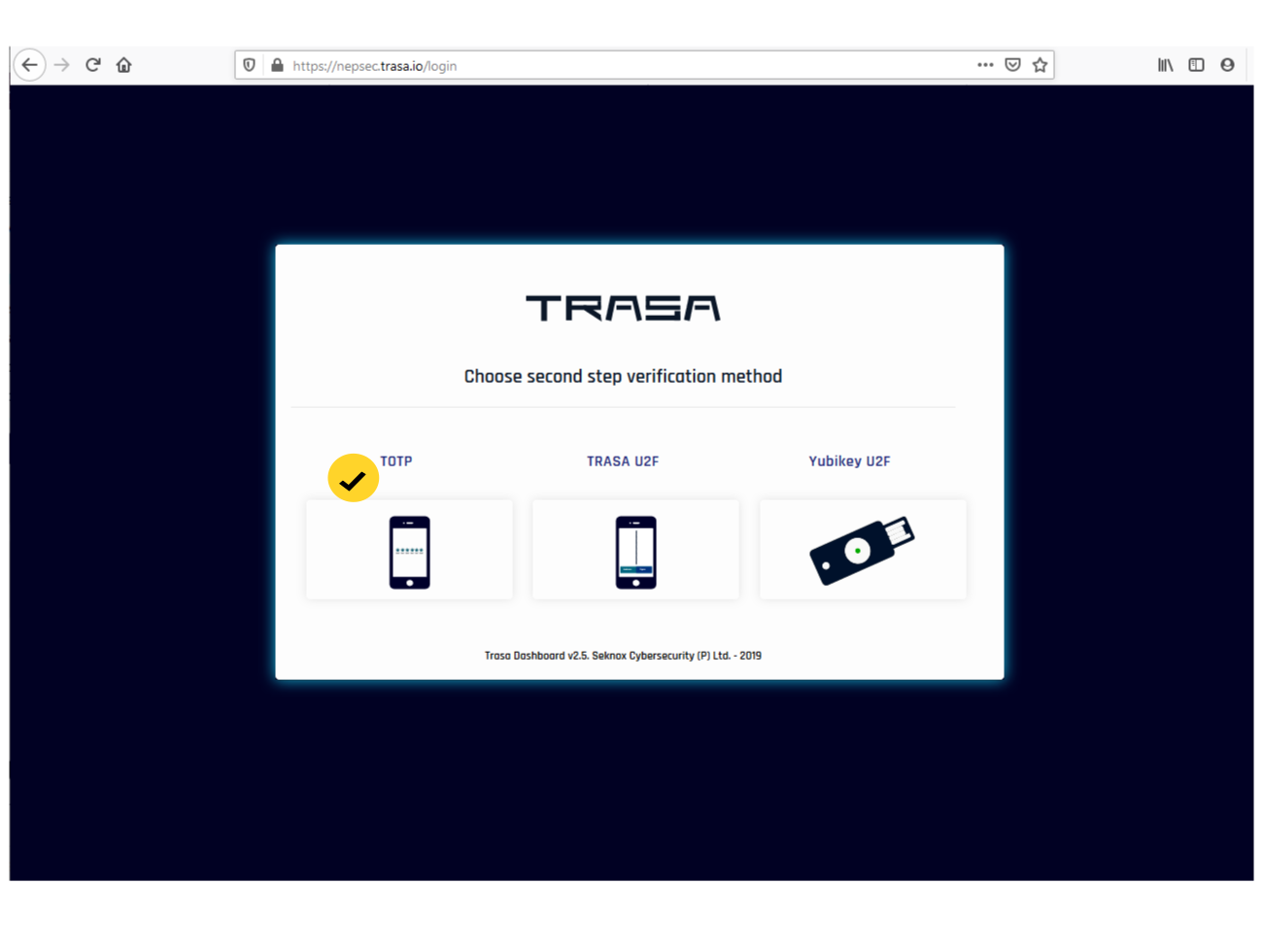
From your TRASAGATE mobile app, note totp code and enter in dashboard to proceed login.

Server will validate your totp code and will redirected to dashboard overview page.

Enrol workstation
Only Firefox browser supported at this time. Supported OS includes windows 10, mac and ubuntu linux.
Install TRASAGATE browser extension
Get your firefox extension. When installing the addon, make sure you allow it on private browsing window as well.
Install TRASAGATE workstation agent
Get agent installer for Workstation agent. Install it in your workstation once downloaded.
Always download agents and installer for TRASAGATE from links provided in Trasagate.com website (this website) only.
Register your device
You can always view your enroled and active device in your account page device tab.
