TRASAGATE Password and Secret Vault
TRASAGATE stores all keys and secrets in a secure vault known as TsxVault.
Sensitive information such as passwords, secret keys, and API tokens are necessary for TRASAGATE to integrate with third-party services, including FCM tokens, email configuration settings, and IDP integration keys.
Vault States
The vault can exist in the following states:
- Uninitialized
- Initialized
- Encrypted
- Decrypted
Initially, after installation, the vault is in the "Uninitialized" state. You must initialize the vault before use.
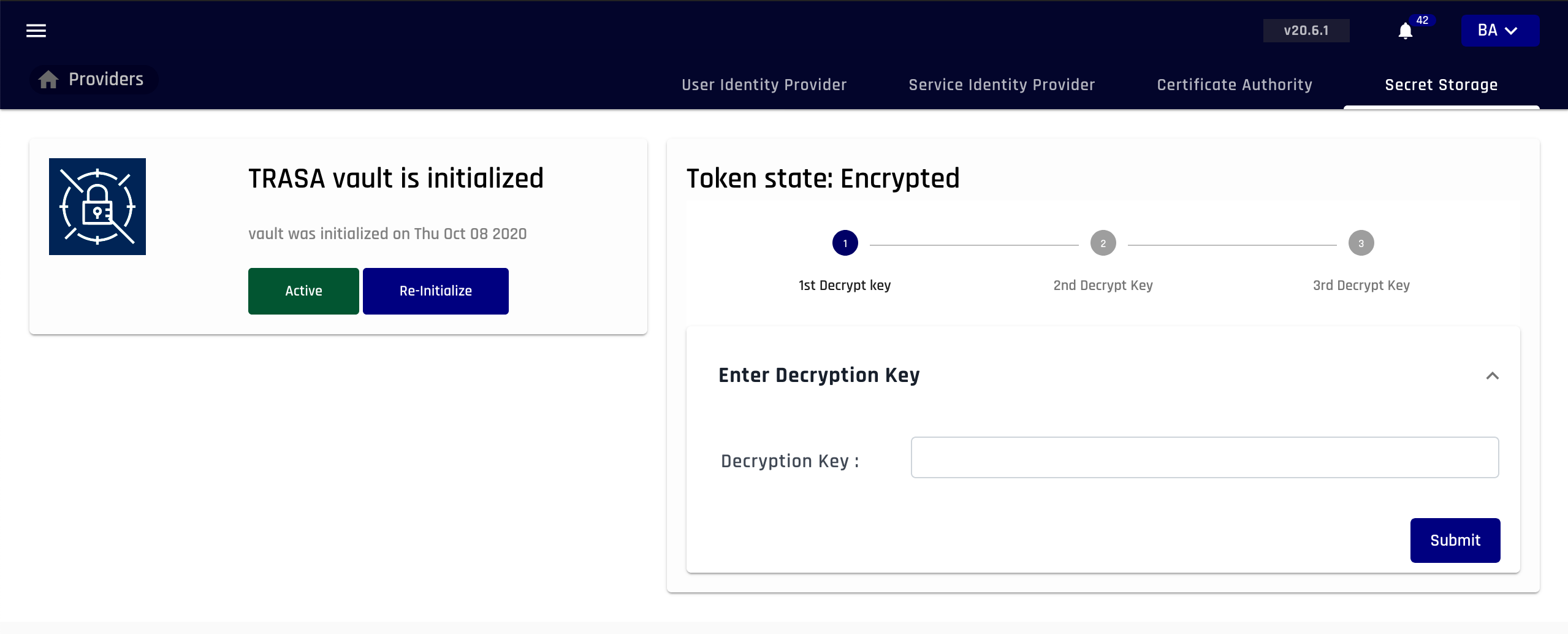
When the vault is initialized, decryption keys are generated, and the vault will be in the "Decrypted" state. These decryption keys are stored in memory. If the TRASAGATE service restarts, the vault will transition to the "Encrypted" state, requiring you to decrypt it using the decryption keys to start using it again.
Initialize Vault (One-Time Setup)
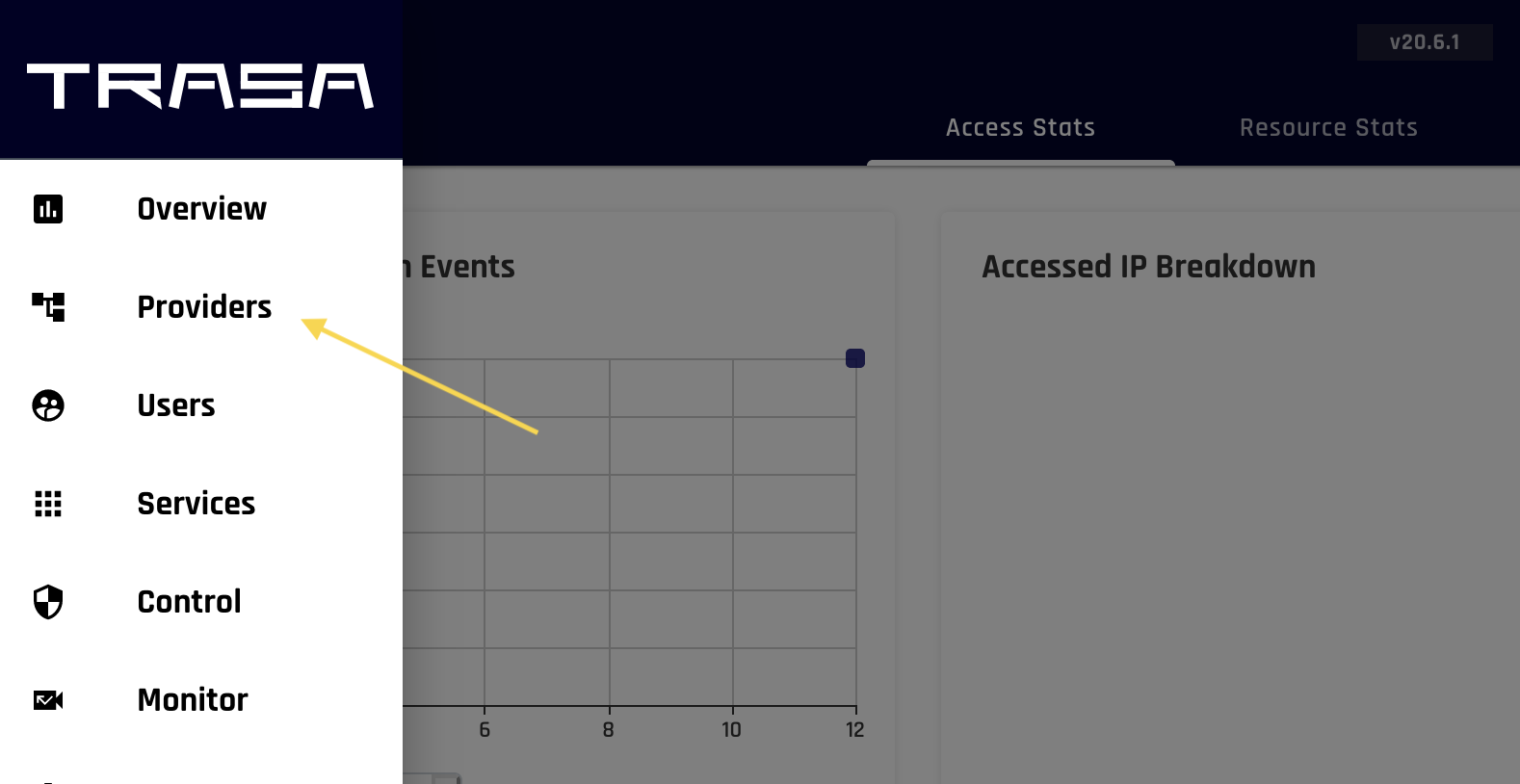
- Open the Menu Drawer and click on Providers.
- Go to the Secret Storage tab.
- Click the Initialize button.
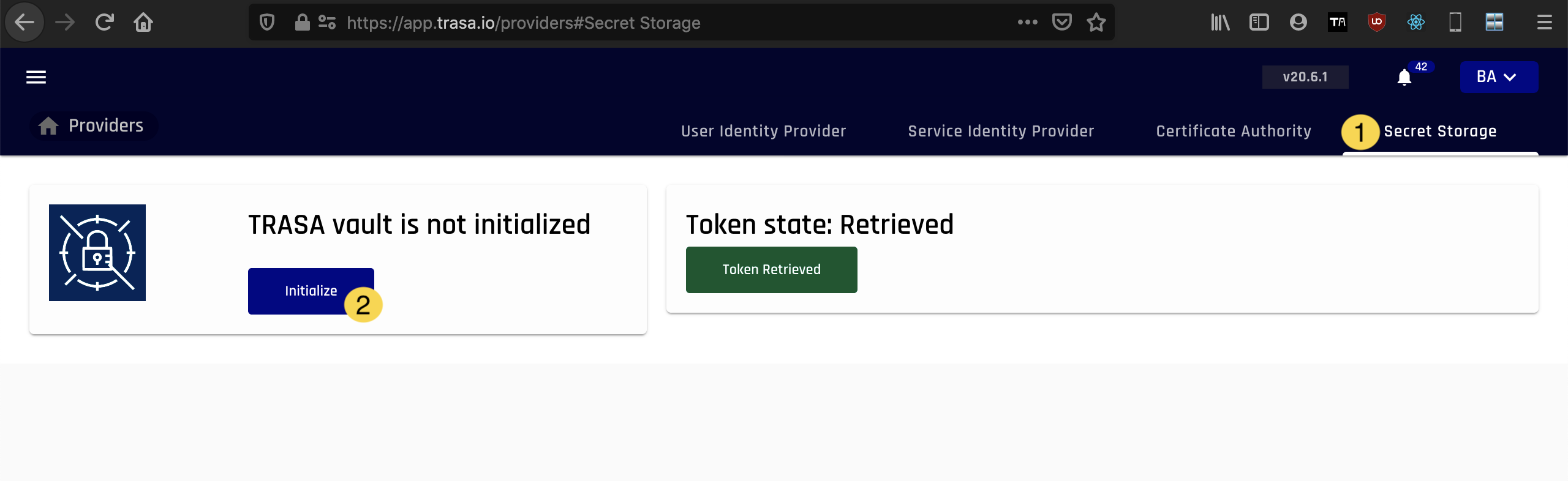
- Copy the decryption keys and keep them securely.

Decrypt the Vault
If the TRASAGATE service restarts, you need to decrypt the vault to start using it again.
To do this:
- Go to the Providers page.
- Click the Secret Storage tab.
- Click the Enter Decryption Key dropdown.
- Enter a decryption key and click Submit.
- Submit two more decryption keys.
Storing Service Credentials
Once the vault is in a decrypted state, you can use it to store service credentials such as passwords and keys.
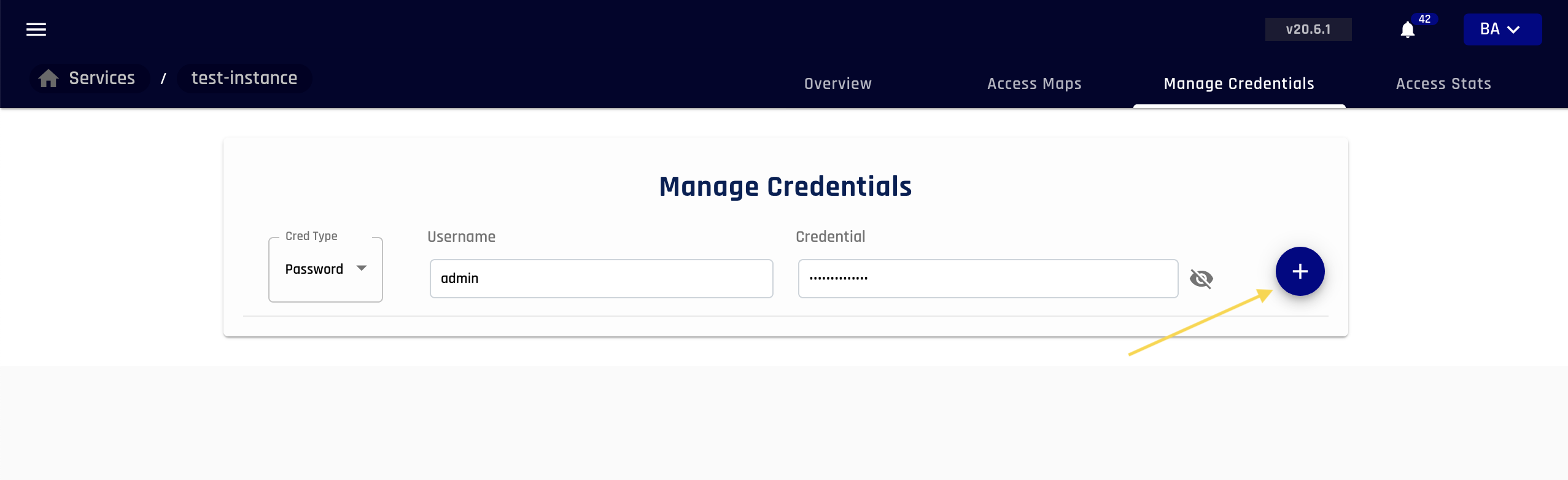
- Navigate to Services and click on the service you want to configure credentials for.
- Go to the Manage Credentials tab.
- Fill in the username and password/key.
- Click the + sign to save.
From now on, users won’t be asked for a password when logging into this service with this privilege.