Windows Two Factor Authentication
Window two factor authentication is supported via TRASAGATE Windows Credential Provider.
Prerequisite
- User profile in TRASAGATE
- Service profile in TRASAGATE
- TRASAGATE Windows tfa agent installer.
- Windows OS (windows 7 and above)
- visual c++ redestributable (Optional)
Installation
Download TrasaWIN and proceed installation.
Do not reboot or sign out from your computer until you configure the agent. Broken configuration may lock your access to operating system.
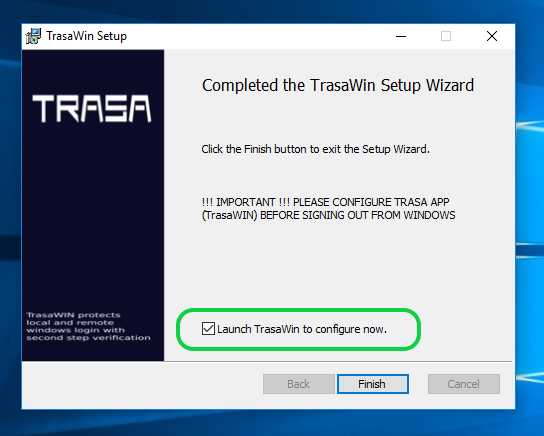
After installation and before you close the installer, it is very important to configure agent.
Check on Launch TrasaWIn to configure now checkbox which will launch configuration panel.
Configuration
If you checked on "Launch TrasaWIN to configure now" checkbox, configuration application will open. You will need to input configuration values in required field.
What values goes in input fields?
- ServiceID: Copy from service profile page
- ServiceKey: Copy from service profile page
- TRASAGATE server address: IP or domain of where TRASAGATE server is hosted.
- Offline Users: Usernames which are allowed to login if the agent could not contact TRASAGATE server (eg. network failure)
- Skip TLS verification: Allows to connect to TRASAGATE server if self signed certificate is used at port 443.
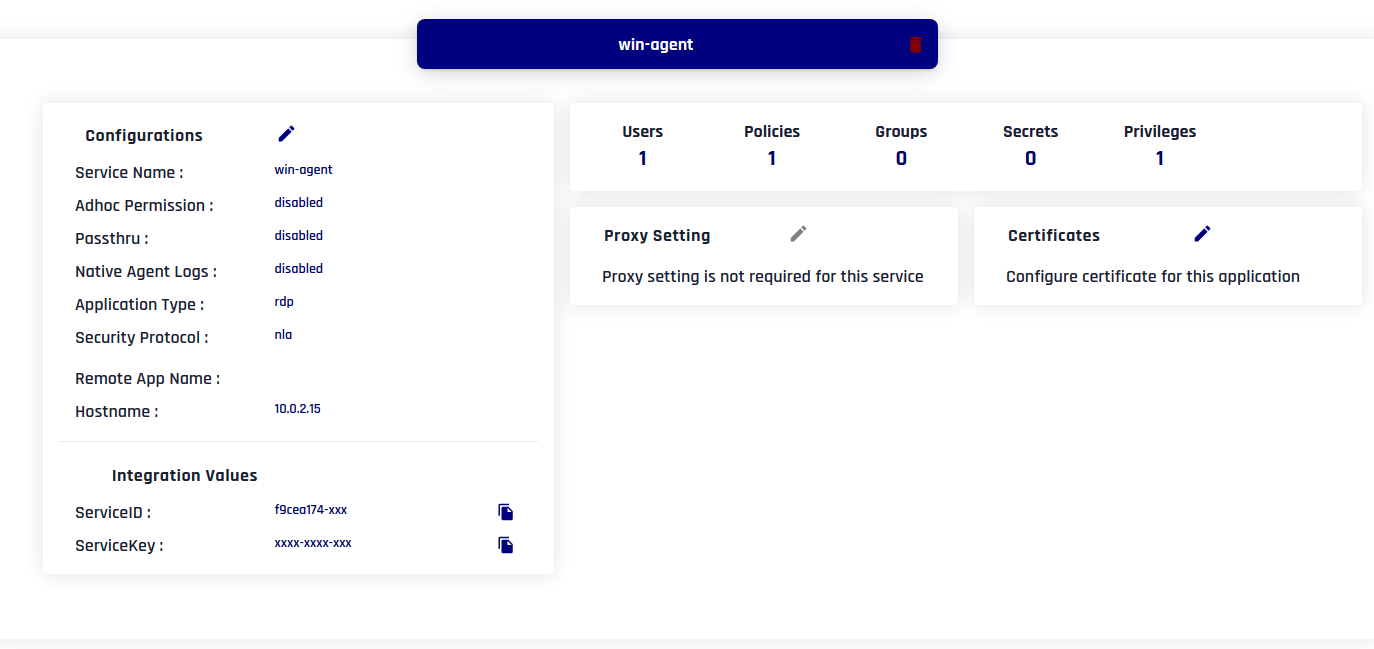
In following image, you can see serviceID, serviceKey and TRASAGATE server address entered as per service created earlier. Note TRASAGATE server address "app.TRASAGATEgate.com" always remains same for TRASAGATE SaaS users and can be custom url for self hosted (On-Premise) TRASAGATE users.
Below is example on how configuration would look like.
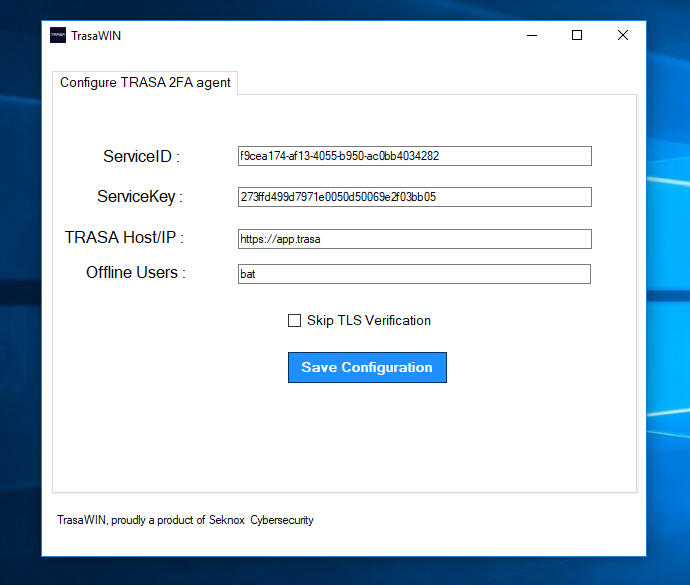
Once you are ready with required configuration values, click Save Configuration button. It will
- Verify configuration values
- Save it in a file if verification is successful.

Finishing
If your verification was success, you will be prompted for TRASAGATE tfa process in next login.
To check, you can try swithing user (from alt+F4 key).
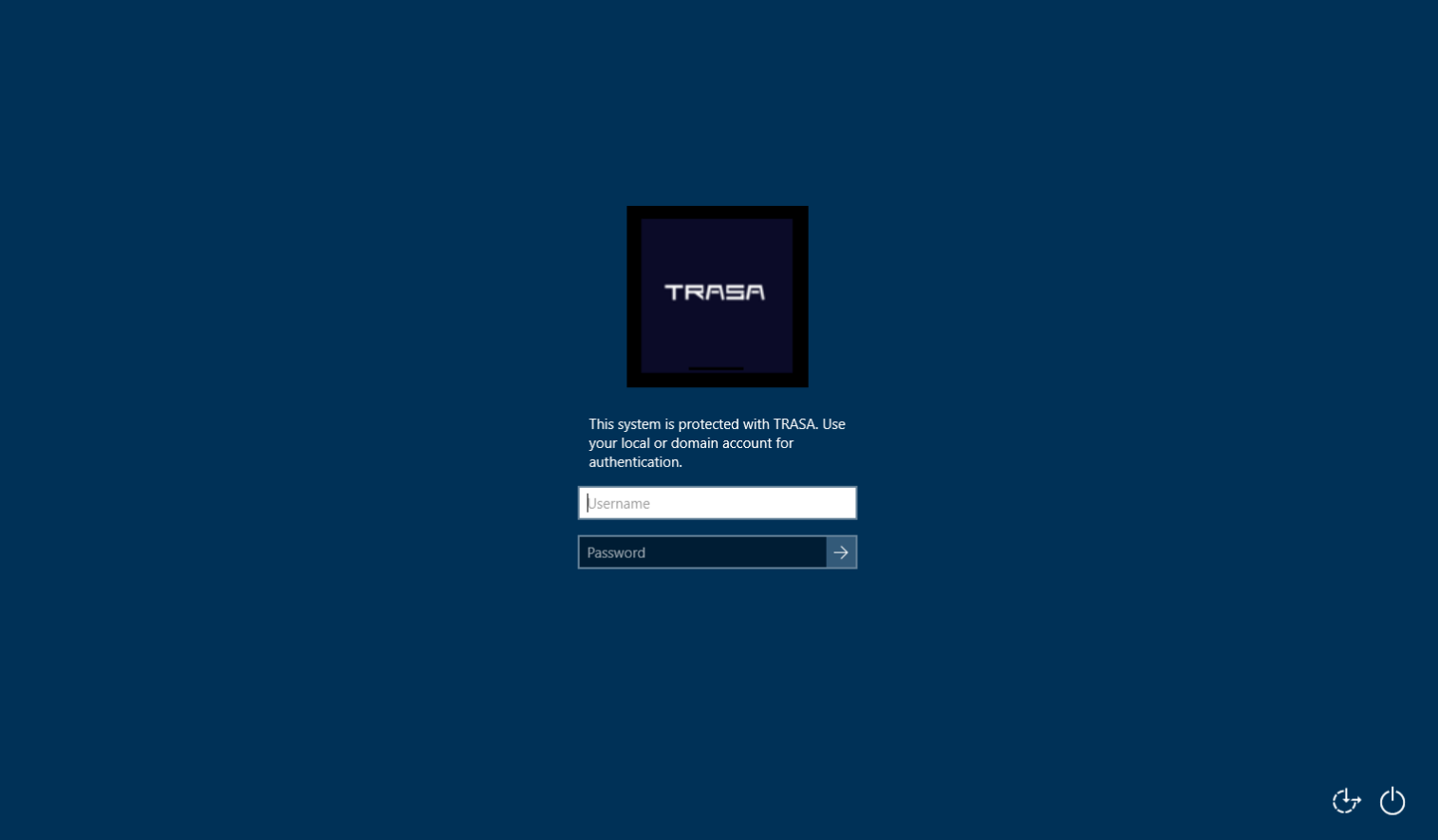
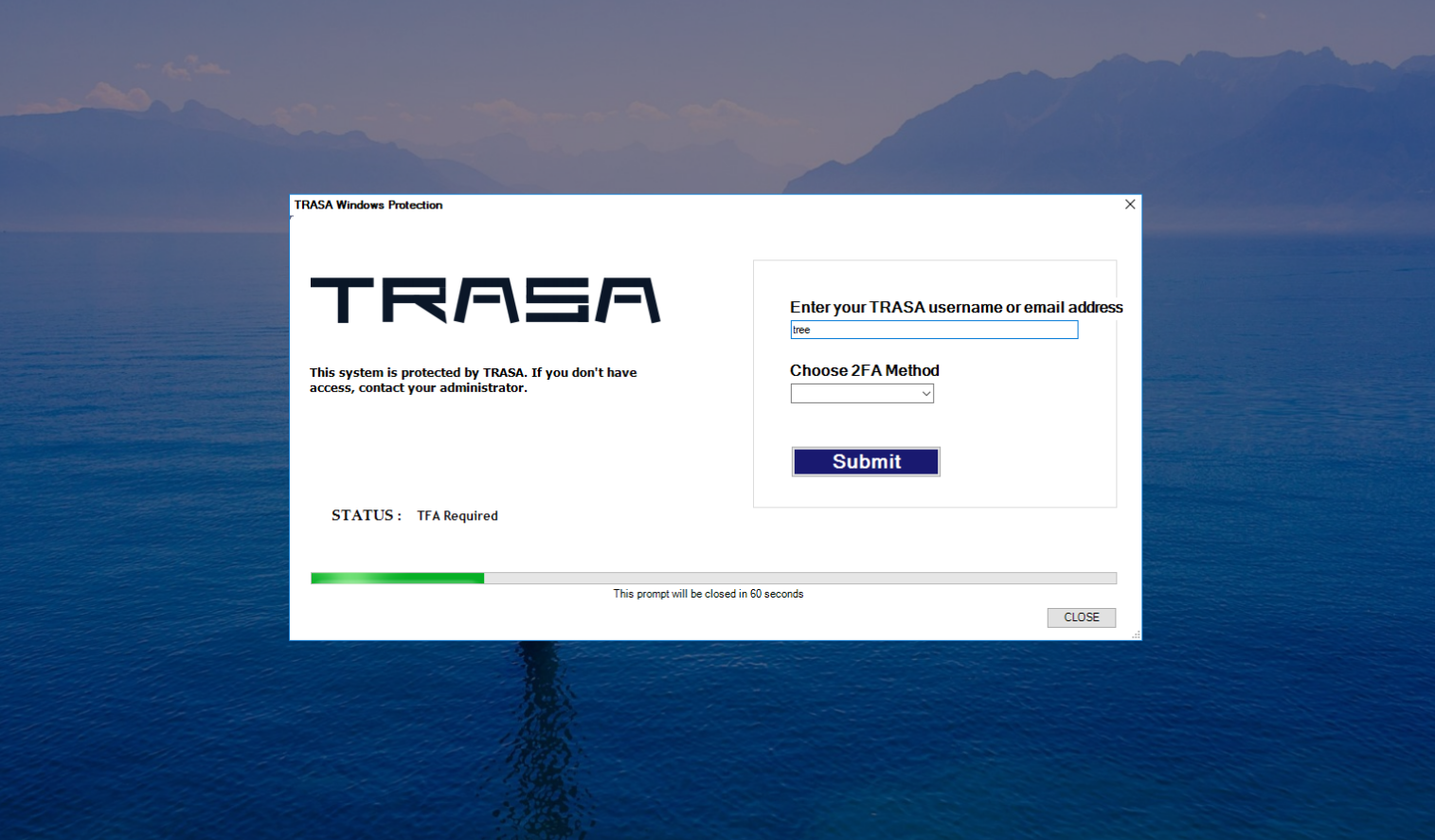
If your username and password validation was successful, you will be prompted with TRASAGATE TFA prompt.
- You will need to enter your TRASAGATE username or email address.
- On Choose 2FA method, you can leave it empty for push U2F or select TOTP option for TOTP.
FAQ
What happens if agent could not resolve TRASAGATE server?
When user tries to login to windows protected with TRASAGATEGATE TFA agent, agent will contact TRASAGATE server for 2FA verification.
What happens when agent cannot contact TRASAGATE server?
In case that you have a network problem, and the agent cannot resolve TRASAGATE server address, your access will be blocked. To overcome this situation, TRASAGATE allows you to set an emergency access account or offline user.
Offline user account can be any currently being used user account in your windows logon (domain or local account). Do note that the username must be exactly matched to the existing user account.
If the user is local account, but windows is domain joined, you will need to assign full user path in format
local-workgroup-name\username