Access SSH Service
Direct Access
When the linux server or workstation is protected with Trasagate 2FA agent, just after the username(privilege) and password validation in the login screen, a prompt will appear on your screen.
$ ssh root@host
$ Password:
$ Enter your trasaID:
$ Choose TFA method (enter blank for U2F):
You will have to enter your trasaID(email or username) and enter the TOTP code to perform second step verification.
Via Trasagate access proxy
You can access the SSH service either via Browser or SSH client.
Using Browser
Login into your Trasagate account from browser.
If you are an admin user,
- Click the account button with your initials on the right top
- Click "My Account" menu
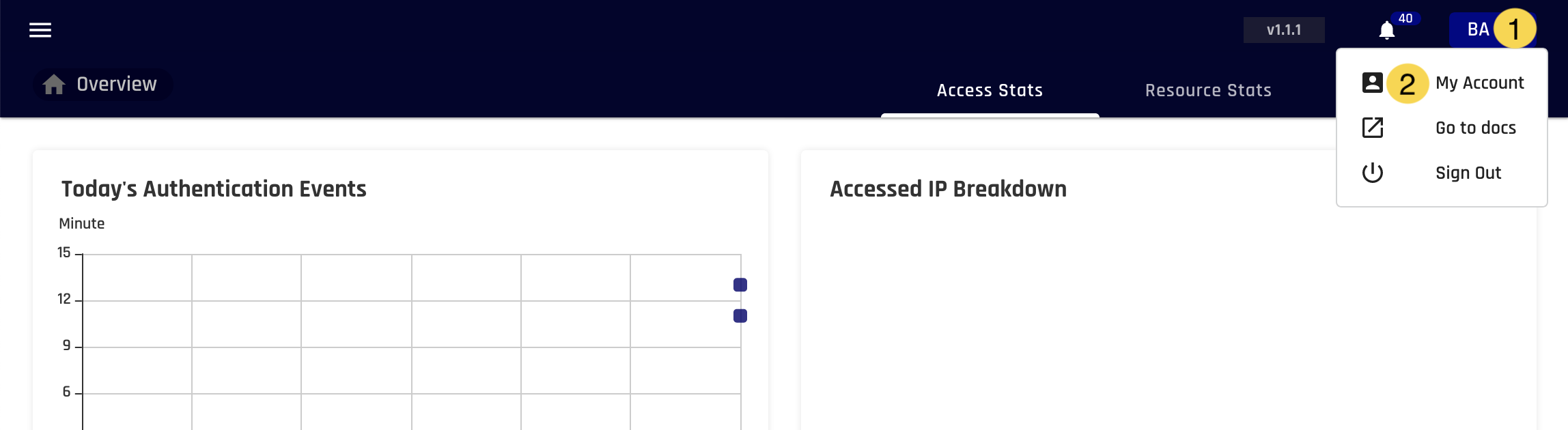
You will be redirected to "My Account" page.
Search for the service you want to connect to.
Click connect and choose the service username.
Enter the password and click submit.
Choose second factor method and authenticate using mobile app
If it's the first time accessing this service, Trasagate will ask you to save the SSH host key. Press "y" to do that.
Using SSH clients
- Connect to 8022 port on Trasagate_HOST using any SSH client.
ssh root@Trasagate_HOST -p 8022 - Enter the Trasagate email and password
- Enter the IP address or name of the service you want to connect to.
- Enter TOTP code or leave it blank for U2F.
- If it's the first time accessing this service, Trasagate will ask you to save the SSH host key. Enter "yes" to do that.
- Enter the service password (Upstream server's password).
Trasagate SSH key
You can skip Trasagate email and password validation using Trasagate SSH key. Download the Trasagate SSH key and use it while accessing SSH through access proxy.
- Login to Trasagate dashboard
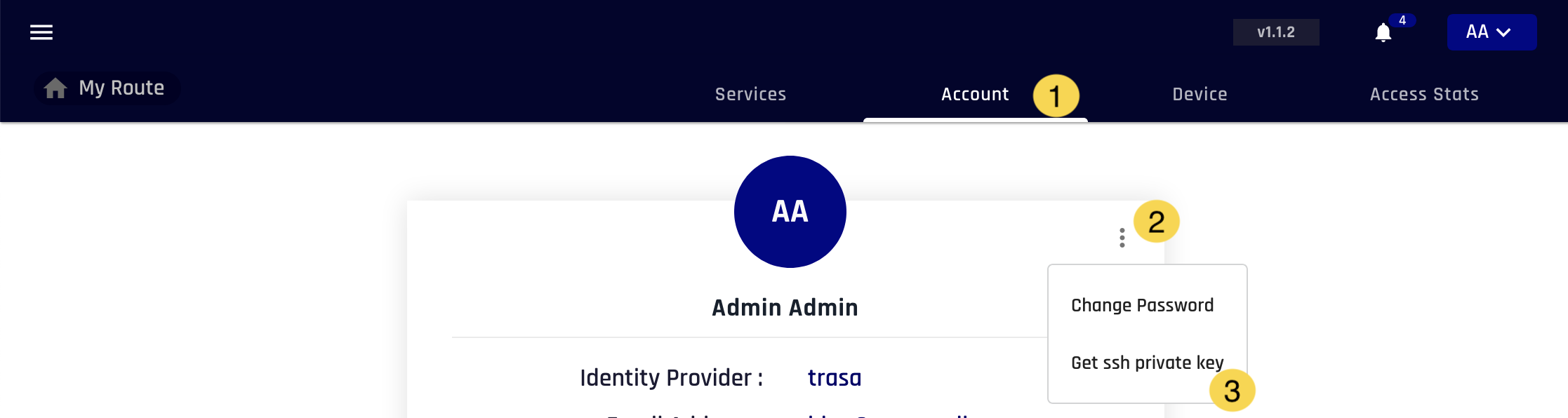
- Go to the "My Account" in dashboard
- Click the "Account" tab.
- Click the menu to get dropdown menu items.
- Click the "get ssh private key" button" to download the SSH key.
- Keep the private key in secure location with 0600 permission (read & write permission to owner only).
sudo chmod 0600 id_rsa - If you're using PuTTY, use PuTTYgen to convert the downloaded key
id_rsaintoid_rsa.ppk. - Now use this key to access SSH through Trasagate access proxy.
ssh -i <private_key_path> root@Trasagate_HOST -p 8022
This key is used to authenticate to Trasagate server, NOT the upstream SSH server. So, you might still be asked for an upstream password.
Examples
OpenSSH client
OpenSSH client with Trasagate private key
Putty with Password
Putty with Trasagate private key
Using private key instead of password
Save private keys in vault (Recommended)
Trasagate can save password and private keys in a secure vault.
It will automatically inject it while accessing services through access proxy.
To use private key to access SSH, ask your administrator to save the private key in the vault.
Using agent forwarding
SSH Agent forwarding is not recommended since it allows users with root privilege in the server to use your SSH keys.
- Add the private key to ssh agent
ssh-add <private_key_path> - Use -A flag
ssh -A -i <private_key_path> root@Trasagate.hostname -p 8022
You can use Trasagate private key and service private key at the same time.
ssh -A -i <trasa_private_key_path> -i <service_private_key_path> root@Trasagate.hostname -p 8022