Windows/RDP
Accessing RDP Services via TRASAGATE
When your administrator configures the access proxy, you can access RDP services directly through the TRASAGATE dashboard. If the access proxy is not configured, but the TRASAGATE 2FA agent (TRASAGateWIN) is installed, you can continue using any regular RDP client you have been using.
Direct Access
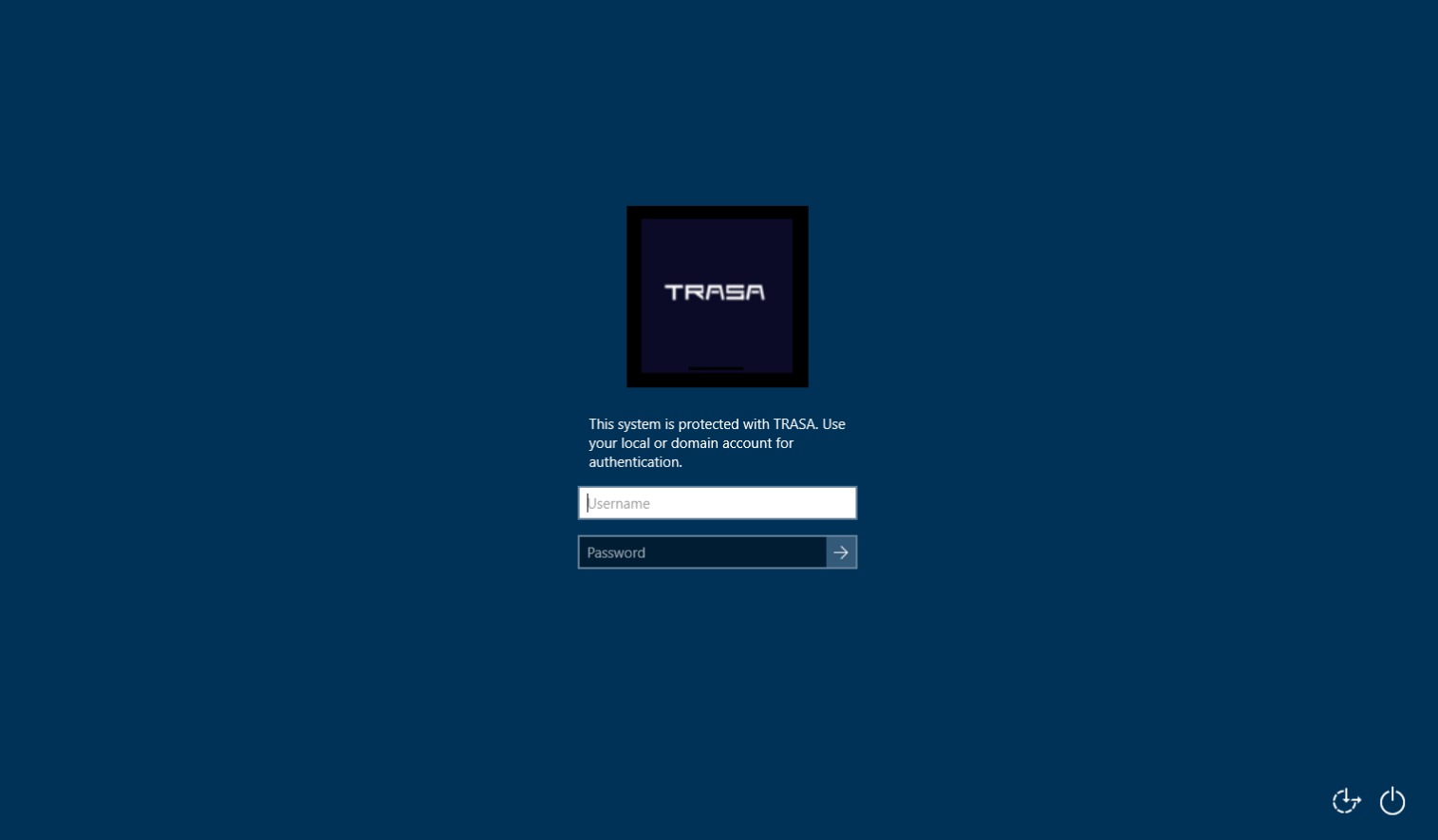
When a Windows server or workstation is protected by the TRASAGATE 2FA agent, after your username (privilege) and password are validated on the Windows login screen, a prompt will appear.
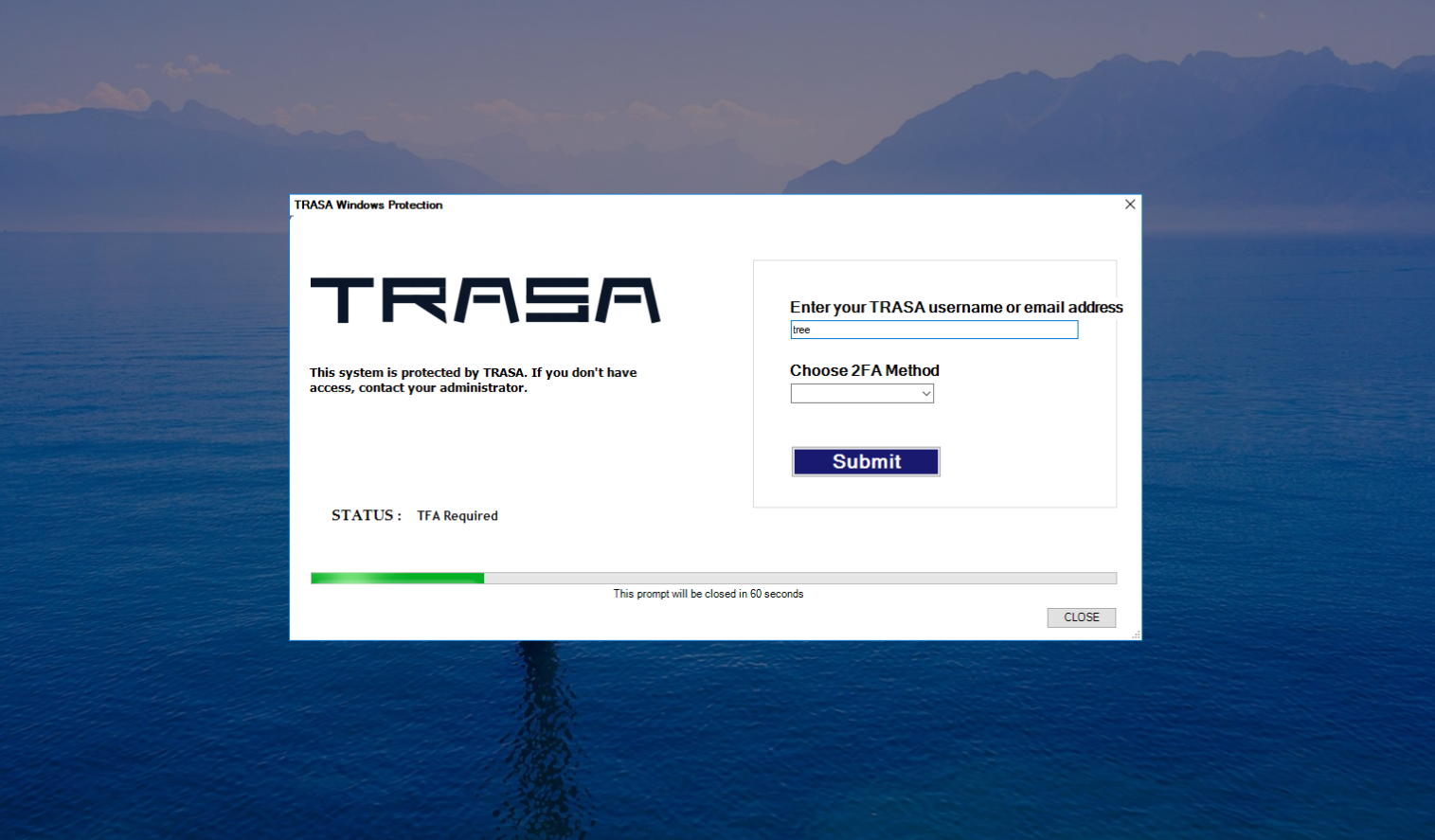
You will need to enter your TRASAGATE ID (email or username) and select the TFA method to complete the second-step verification.
Access via TRASAGATE Access Proxy
To access RDP services through the TRASAGATE access proxy:
- Log in to your TRASAGATE account.
- Search for the service you wish to connect to.
- Click the "Connect" button and choose the service username.
- Enter your password and TOTP to complete the connection.
RDP Console Menu
When accessing RDP via a browser, you can open the console menu by clicking the gear icon at the top.

The console menu provides access to the "Clipboard," "File Transfer," and "Keyboard Events" sections.

Clipboard
During an RDP session, your keyboard input is captured by the RDP console, so standard copy-paste (Ctrl+C/Ctrl+V) works only on the remote RDP server.
To copy text from the RDP server to your local PC:
- Copy the text on the RDP server (using Ctrl+C).
- Open the console menu. The copied text will appear in the clipboard.
- Select the text in the clipboard, right-click, and choose "Copy" (Ctrl+C won’t work here).
- You can now paste the text on your local PC.
To copy text from your local PC to the remote RDP server:
- Copy the text on your local PC.
- Open the console menu.
- Right-click on the clipboard and paste the text.
- Now, you can paste the text on the remote RDP server.
Clipboard Demo
File Transfer
If you have file transfer access, a TRASAGATE shared drive will be mounted on the remote RDP server when you connect.
To upload a file from your local PC to the remote RDP server:
- Open the console menu.
- Choose a file to upload and click "Upload."
- Open the TRASAGATE shared drive on the remote server and copy the file from there.
To download a file from the remote RDP server to your local PC:
- Copy the file into the TRASAGATE shared drive on the remote server.
- Open the console menu.
- Click "Download."
- You will see a list of files in your TRASAGATE shared drive.
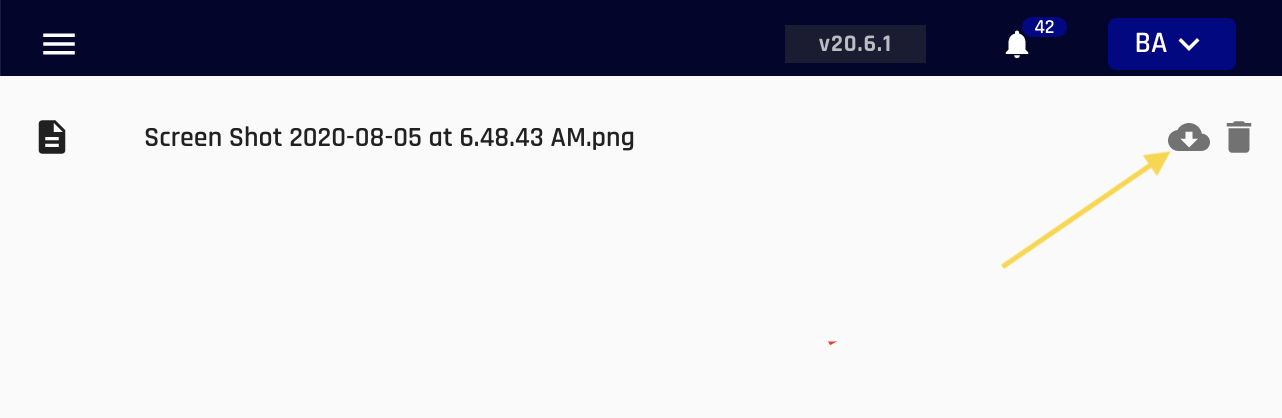
- Click the download icon to download the file.