Enroll 2FA Device
Enrolling a secondary mobile device for two-factor authentication (2FA) in TRASAGATE is a straightforward process that enhances the security of your account. By adding an additional device, you can ensure that you have a backup method for 2FA in case your primary device is lost, stolen, or unavailable.
Prerequisites
Before enrolling a new 2FA device, ensure that you have the following:
- Access to your TRASAGATE account with administrator privileges.
- The TRASAGATE mobile app installed on your secondary device. You can download the app from the Play Store for Android devices or the App Store for iOS devices.
Step 1: Navigate to the "My Account" Page
- Log in to your TRASAGATE account.
- Click on your profile icon in the top-right corner of the dashboard.
- Select "My Account" from the dropdown menu.
Step 2: Access the "Device" Tab
- In the "My Account" page, click on the "Device" tab.
- This tab displays a list of currently enrolled devices associated with your account.
Step 3: Initiate the Enrollment Process
- Click on the "Enroll 2FA Device" button.
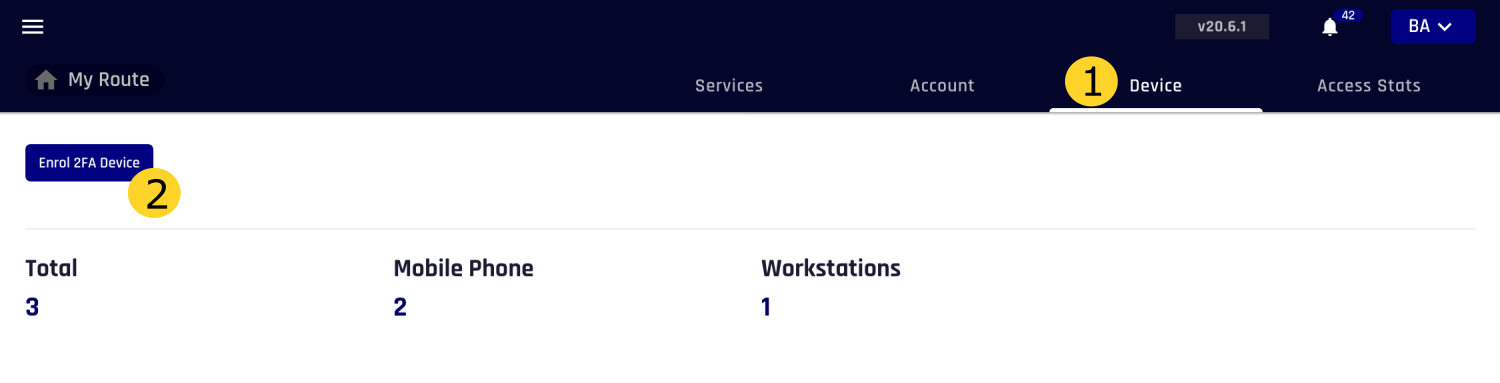
- You will be prompted to enter your TRASAGATE account credentials and authenticate with your current 2FA method.
Step 4: Scan the QR Code
- After successfully authenticating, a QR code will be displayed on the screen.
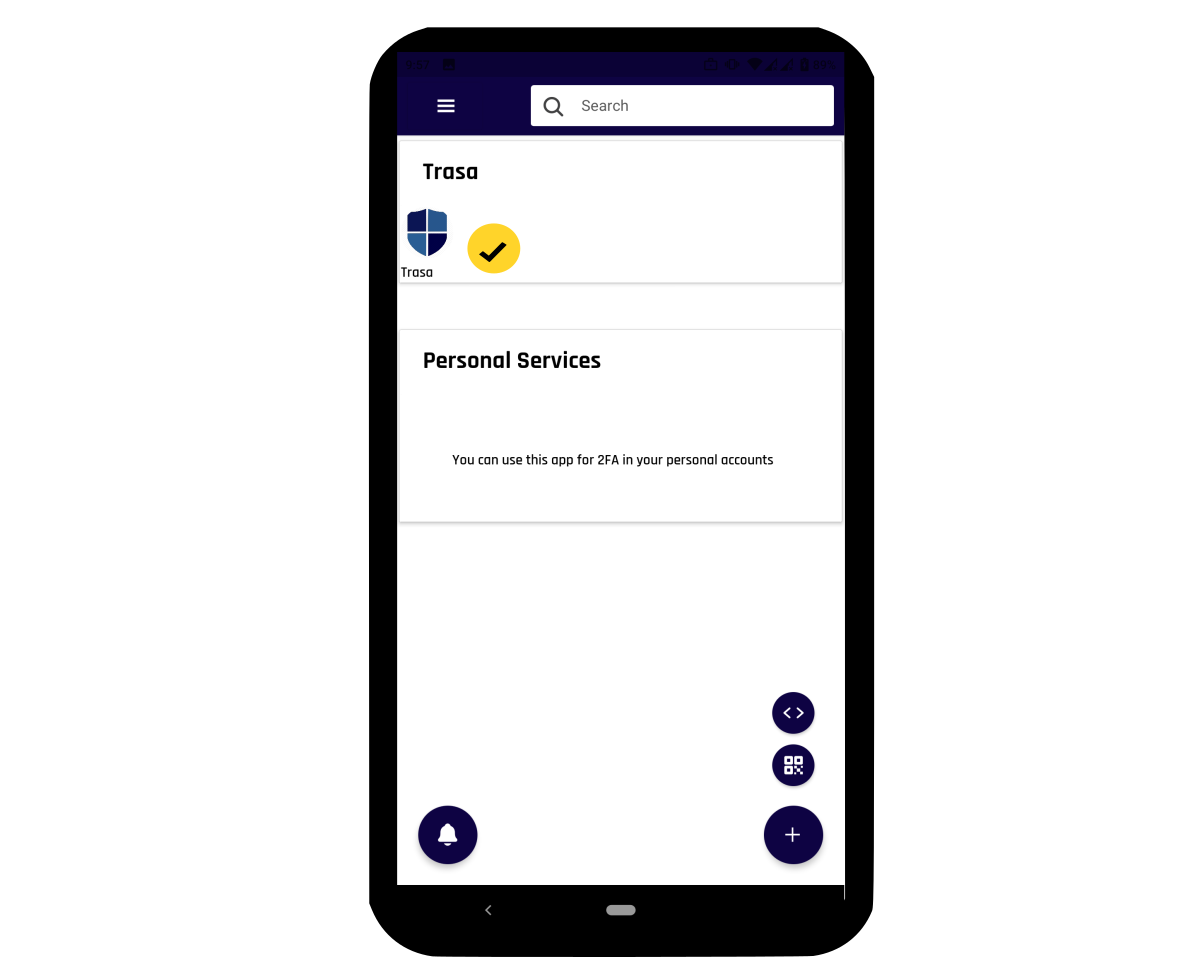
- Open the TRASAGATE mobile app on your secondary device.
- Tap the "+" button in the bottom-right corner of the app.
- Select the QR code icon to open the scanner.
- Scan the QR code displayed on your computer screen using your mobile device.
Step 5: Verify the Enrollment
- If the QR code is scanned successfully, your secondary device will be enrolled for 2FA.
- You will see a confirmation message in the TRASAGATE mobile app, and the new device will be listed in the "Device" tab of your account settings.
Benefits of Enrolling Multiple 2FA Devices
- Backup and Redundancy: By enrolling a secondary device, you have a fallback option for 2FA in case your primary device is unavailable, ensuring uninterrupted access to your TRASAGATE account.
- Flexibility: Multiple 2FA devices allow you to choose the most convenient method for authentication, depending on your current situation and device availability.
- Enhanced Security: Requiring 2FA across multiple devices adds an extra layer of security to your account, making it more difficult for unauthorized users to gain access.
By following these simple steps, you can easily enroll a secondary 2FA device in TRASAGATE, enhancing the security and flexibility of your account access.